
How to create a "copy" link in Google Workplace
Use the little-known trick to force a "copy" of your file before a user opens it. This is a great way to remove any confusion on how to create a copy, or your template accidentally being overwritten!
Summary: Force users to make a copy of your Google Docs, Sheets, or Slides before opening—no more overwritten templates. Just tweak the share link: replace "edit" with "copy." This ensures each user gets their own version, saved to their Google Drive with default private access.
If you're a visual learner you can watch this short tutorial on YouTube:
Or, follow the simple steps below and never experience your template being accidentally overwritten again!
Step 1: Open the file you wish to share
The first step is to open the file in Gdrive that you want to share (ie: you cannot do this from the main drive folder).
Step 2: Manage permissions 🔓
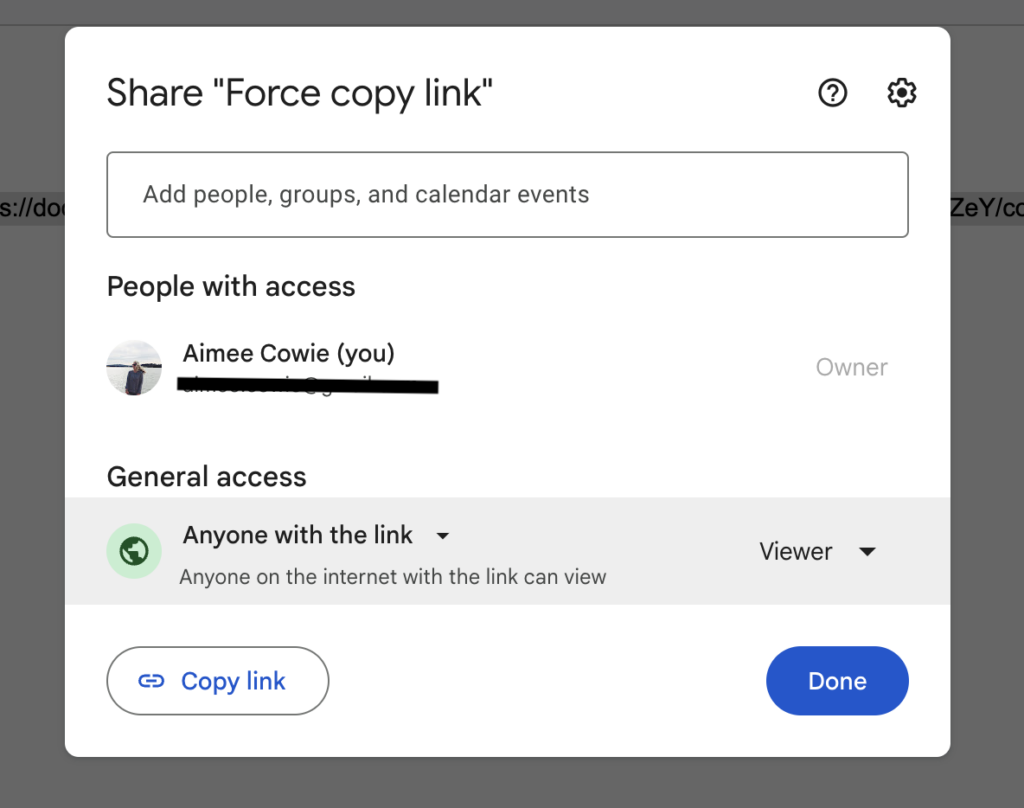
The sharing settings within Gsuite
Next, you want to make sure your permissions are set to "anyone on the internet with the link can view".
To do this:
'File' > 'Share' > 'Share with others' (or click 'Share' at the top right of the page)
Under 'General access' (this will be 'restricted' by default)
Select 'anyone with the link'
From the right-hand side drop-down select 'Viewer'
Step 3: Get the URL 🔗
Either copy the link directly from the URL or click on 'Share' > Copy link.
Remove all the contents after the word 'edit', and replace them with the word: copy.
Here's an example:
Get the URL
Direct from URL: https://docs.google.com/document/d/something/edit?tab=t.0
Or via share: https://docs.google.com/document/d/something/edit?usp=sharingRemove everything from “edit” as highlighted above
Replace with the word “copy”
Example: https://docs.google.com/document/d/something/copy
Step 4: Share the URL 📤
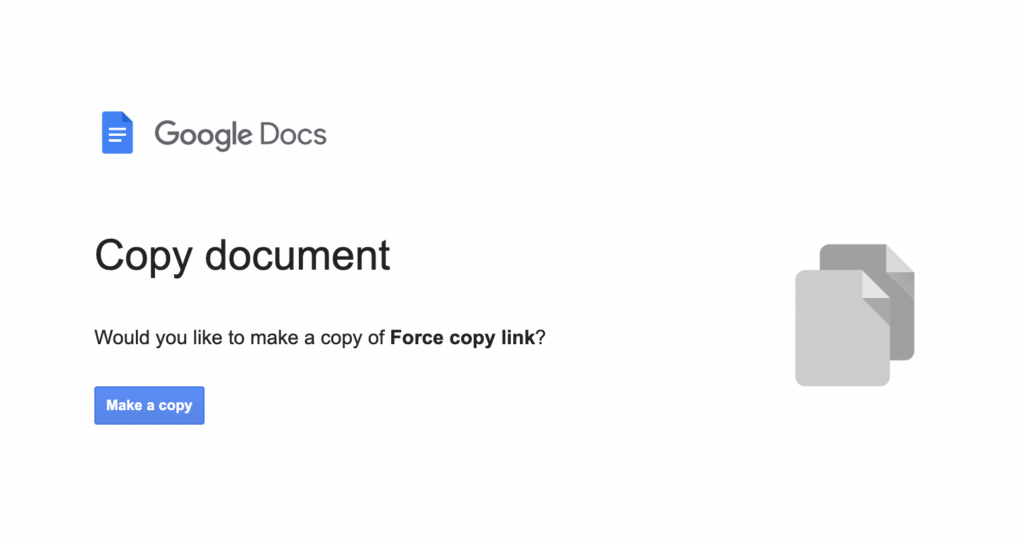
What you’ll see when the copy link has been shared.
Voilà! It really is that simple! You now have a shareable URL that will automatically require the user to copy before opening.
The copied file will be saved in the user's own GDrive, and access will be restricted to just that user unless they actively change the share settings.
Mastered the "copy" link trick? Now streamline your entire workflow
Forcing users to make a copy of your template can save time and reduce errors, but it's just one part of creating a more efficient and organised workflow.
Want a plug-and-play system to support your productivity goals?
Our Notion template gives freelancers a complete setup to manage projects, track tasks, and stay organised, helping you build on the momentum you've gained from optimising your Google Workspace skills.
EXPLORE THE TEMPLATE →
Ready for the complete framework?
The Most Organised Person I Know shows you how to design simple systems that reduce mental load and help your work flow more smoothly, from daily tasks through to long-term projects.
GET THE EBOOK →
Build a workflow that saves you time and reduces stress.