How to change the default Gmail snooze time options
The Google Keep trick for changing Gmail's snooze times is gone. Your old custom times still apply, and the Gmail mobile app is where you change them now.
Updated September 2026.
Summary: You can customise the default Gmail snooze times in the Gmail mobile app: go to Settings, 'Inbox customizations', then 'Snooze settings'. The new times show up in Gmail in your browser within a few minutes. The old Google Keep method no longer works, as the 'Reminder defaults' setting has been removed from Keep. If you set custom times through Keep before it disappeared, Gmail has kept them.
Until recently, you could only change your Gmail snooze times in Google Keep, but the setting has disappeared! Never fear, there’s a new workaround for customising these times to your heart's (and schedule's) content, and it lives in the Gmail phone app.
By default, Gmail (and Keep) offer three default times for snoozing:
Morning — 8am
Afternoon — 1pm
Evening — 6pm
So what if you're an early riser? Or prefer your snoozed emails stay put until after after you've had your morning coffee? What if the last opportunity to check on work emails is actually around 5pm? Or if you usually get home from work after 7pm, and want the snoozed emails to re-appear after that?
The Google Keep setting is gone
The old method went like this: open Google Keep, click the gear icon, go to Settings, and change the three times under 'Reminder defaults'. Gmail read its snooze times from the same place, so changing them in Keep changed them in Gmail too.
In October 2025, Google started moving Keep's reminders into Google Tasks. 'Reminder defaults' no longer shows up in Keep's settings.
Your old custom times still apply
If you used the Keep trick before it disappeared, Gmail has held on to the times you set. My snooze menu was still showing my custom times this month, even though the setting I used to create them no longer exists.
To check yours, hover over any email in Gmail, click the clock icon and look at the times listed. If you see 8am, 1pm or 6pm, you're on Google's defaults. Anything else is a time you set yourself at some point.
Change the defaults in the Gmail app
The new fix is in the Gmail mobile app. Thanks to Adventure NML for pointing this out in the comments before the Keep setting disappeared!
On iPhone:
Open the Gmail app and tap the menu icon (three lines) in the top left.
Scroll down and tap 'Settings'.
Tap 'Inbox customizations'.
Tap 'Snooze settings'.
Tap 'Morning', 'Afternoon' or 'Evening', choose your time and save.
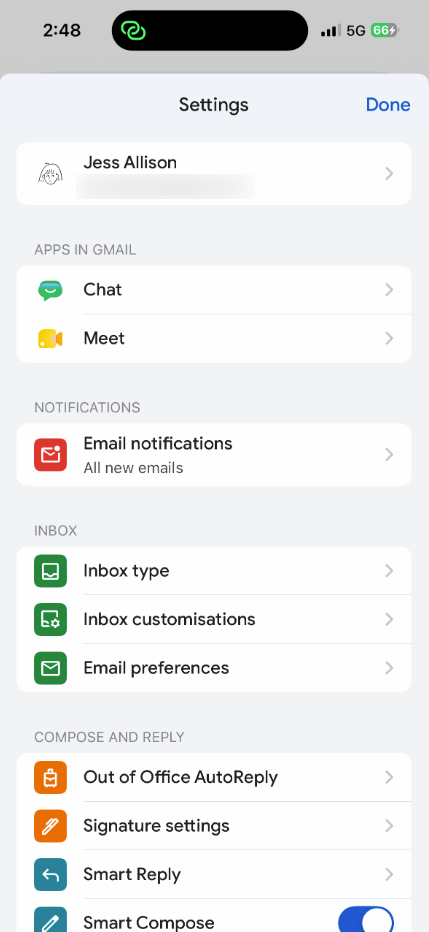
Gmail app settings
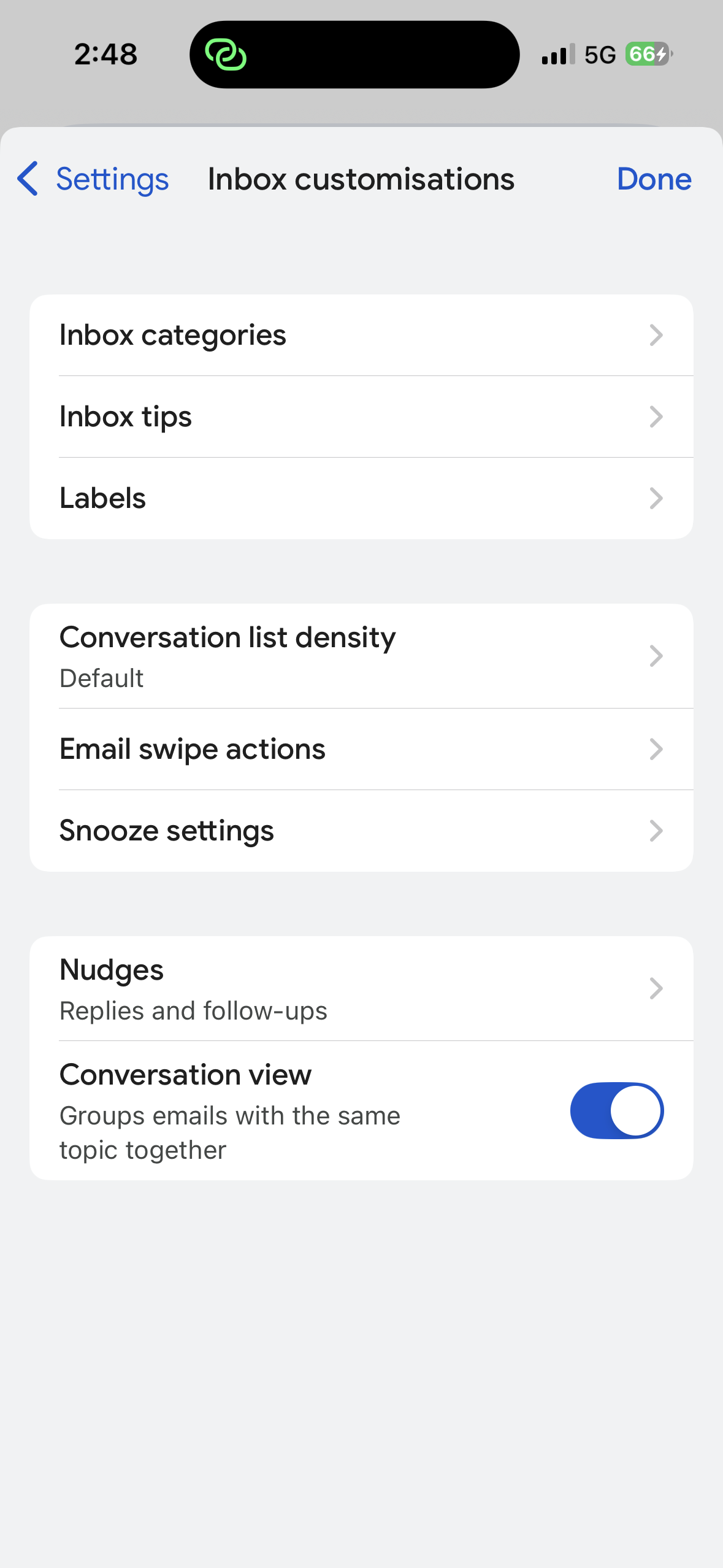
Inbox customsations
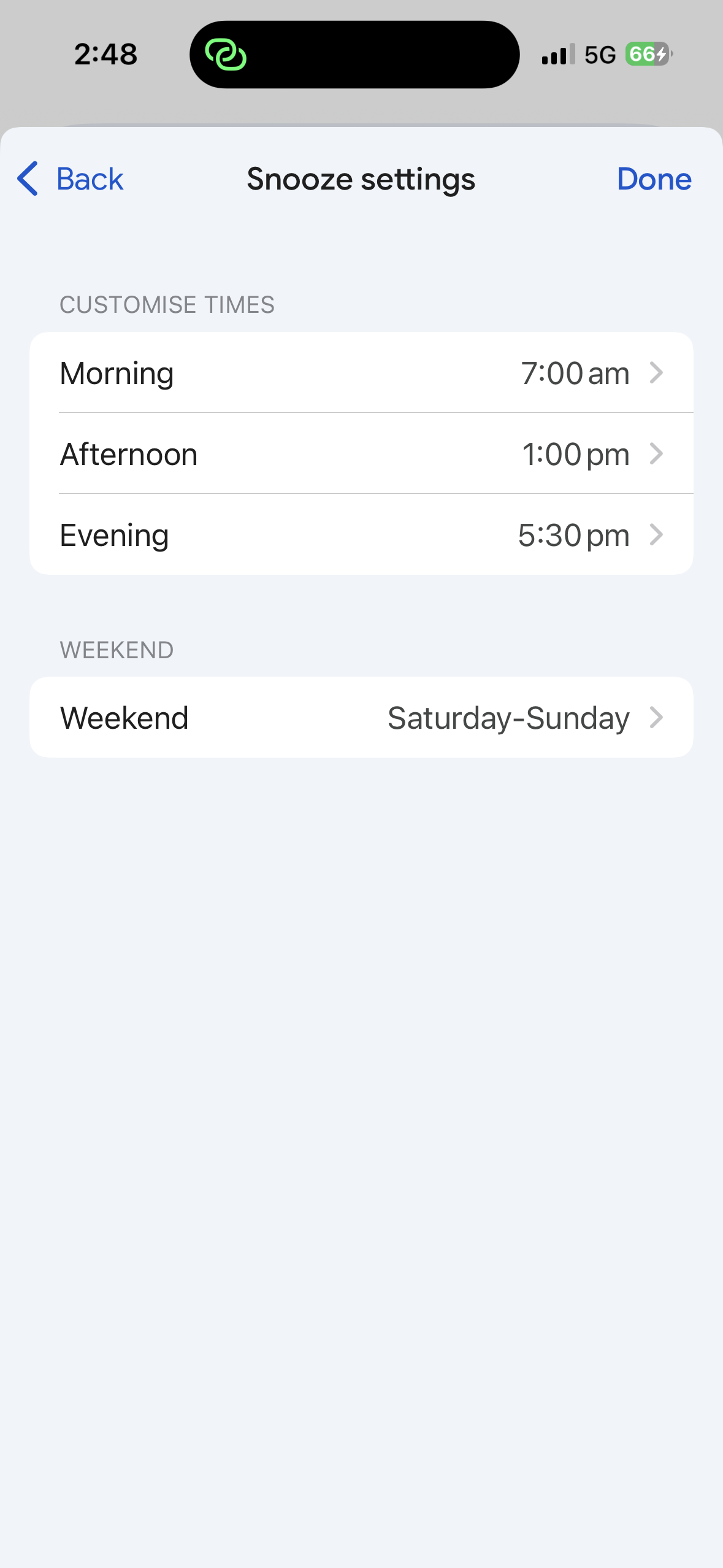
Snooze settings
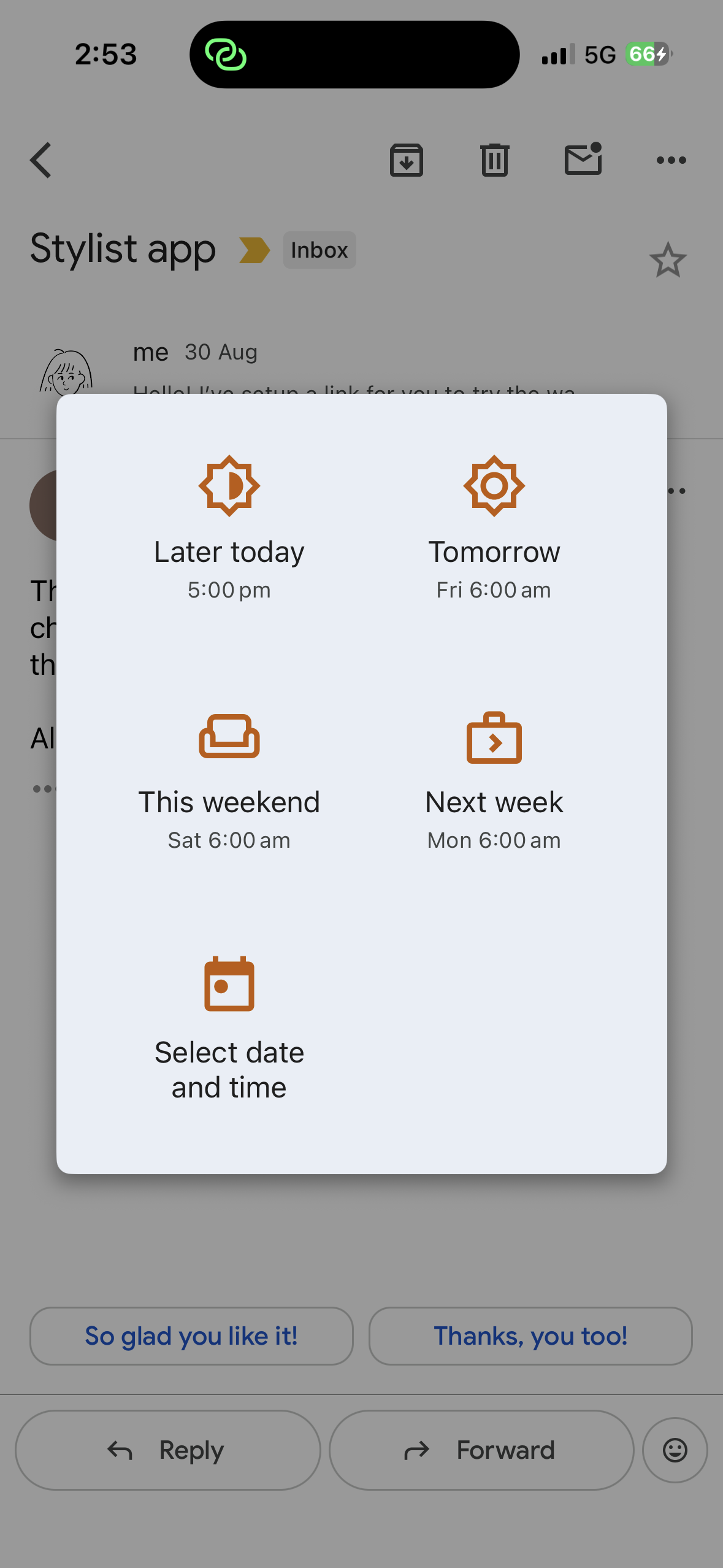
Google Keep snooze options
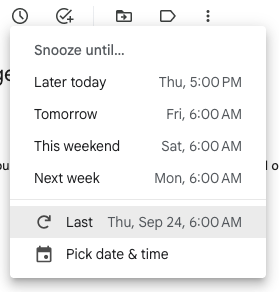
My new Gmail snooze times in action
The new times carry across to Gmail in your browser too. It took a few minutes for mine to show up, so if the snooze menu on your computer still has the old times straight after saving, give it a moment and refresh.
I've set Morning to 6am, Afternoon to 12pm and Evening to 5pm. When I opened the snooze menu at 3.26pm, 'Later today' used my Evening time, and 'Tomorrow', 'This weekend' and 'Next week' all used my Morning time.
While you're in there, 'Weekend' lets you choose which days count as your weekend, which changes when 'This weekend' brings an email back. That's handy if your week doesn't run Monday to Friday.
A quick plug for Inbox Zero
The snooze feature is something I use in tandem with labels in Gmail to achieve email bliss —cough— I mean, Inbox Zero. There's a whole other post explaining how you can get there too, check it out!
Email bliss AKA Inbox Zero
FAQ
Can I change snooze times in Gmail on desktop?
No. Gmail on a computer runs in your browser, and as of September 2026 there's no snooze setting anywhere in its settings. You can use 'Pick date & time' for a one-off, or change the defaults in the mobile app and they'll carry across to the browser.
Where did 'Reminder defaults' go in Google Keep?
It's been removed. Google moved Keep's reminders into Google Tasks from October 2025, and the setting hasn't reappeared in Tasks or in Keep.
Will my old custom snooze times reset to 8am, 1pm and 6pm?
Mine didn't. Times I'd set through Keep were still showing in my Gmail snooze menu until I changed them in the app. If yours do reset, the Gmail app is where you set them again.
Do the times I set in the app apply in the browser too?
Yes. Times set in the Gmail app on my iPhone showed up in the snooze menu in my browser after a few minutes.
Snooze times sorted? Here's how to hear about the next fix
This article needed rewriting because a setting vanished and I didn't notice until I went back to check. When we find a fix like this one, it goes in the newsletter.
Ready to set up everything else the way you've set up snooze?
The Most Organised Person I Know is my ebook on building systems that cut down how much you have to hold in your head, organised around the SPACE framework: Systems, Preparation, Awareness, Curation and Evolution.
Custom snooze times are just the beginning. Let's make all your tools work better for you.