Forwarding to multiple addresses in Gmail

Gmail caps forwarding at one address. Here's the filter workaround we use to send a shared inbox to everyone on the team, free and using only Gmail.
Summary: Gmail's forwarding settings only let you add one destination, which breaks the moment you want a shared inbox to land in everyone's personal Gmail. The workaround uses filters instead of native forwarding: add each address as a verified forwarding option, disable native forwarding, then create one filter per recipient with a deliveredto: rule. Five minutes to set up, no paid plan needed.
Update (May 2026): This workaround is still working as of May 2026. If it stops working for you or you're having issues setting it up, let us know in the comments.
Gmail will only let you forward to one address, which is fine until you're running a shared inbox and three people want to see what lands in it. That's the situation we hit with the Producing Paradise inbox, weareproducingparadise@gmail.com (drop us a line 😉), and the workaround below is what we run now. No paid plan, no extra tools, just Gmail filters doing the job Gmail's forwarding settings won't.
A free Gmail address suited us because we're all familiar with the platform, and it means we can log in from anywhere, on any device. We didn't need a domain-matching email (like hello@…) either, this is a side project and hosted email costs money.
Here's the video overview (3min)
Video summary:
0:13 Use case
0:30 Gmail settings
0:44 Add forwarding address
1:22 Disable forwarding
1:36 Filter setup
1:43 'deliveredto:' filter explained
2:08 Repeat per recipient
Psst... if you’re sorting out email to stay on top of things, you’ll love our Notion setup for freelancers. It’s how we keep projects moving, tasks tracked, and everything in one place 😉
Setting up the workaround
1. Create a Gmail account — the one you want to forward from
2. Log in and click the cog icon to open Settings
3. Go to Forwarding and POP/IMAP > Add a forwarding address
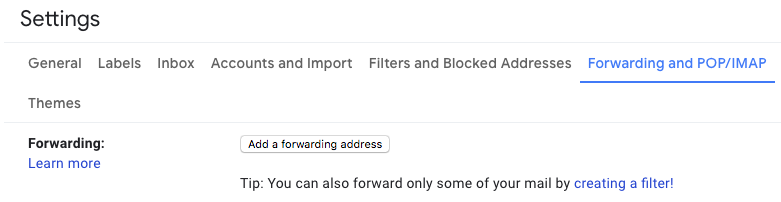
4. Add each email you want to forward to
5. Verify each forwarding address by clicking the confirmation email they receive
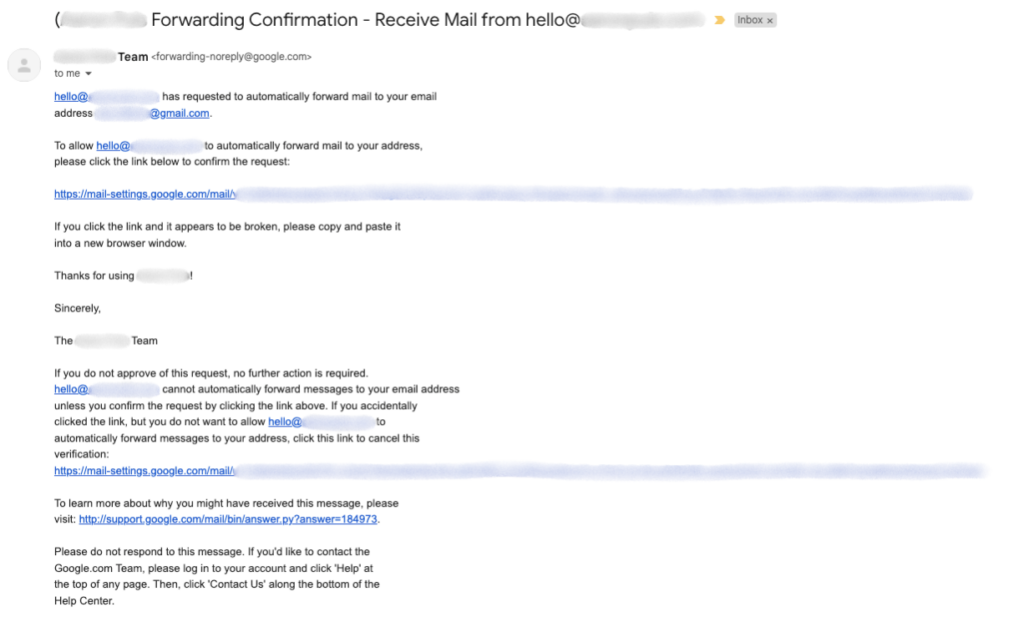
6. Once verified, go back to the Forwarding and POP/IMAP page and make sure it looks like this:
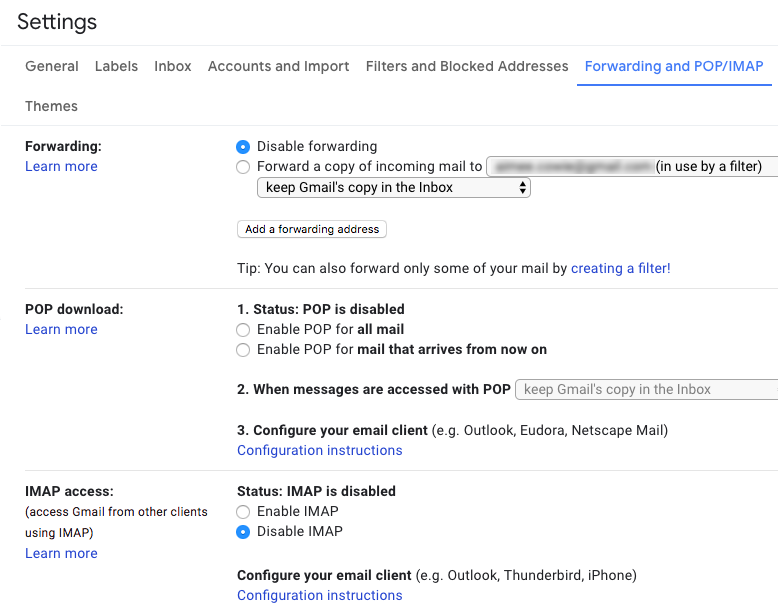
Two things to notice in that screenshot:
Forwarding is disabled — because we’re going to make it work using ‘Filters’
POP and IMAP are disabled — because we don’t want anything we do in our personal email account to affect the original
The 'POP' toggle here is about whether other email clients can sync this account. It's not related to the 'fetch mail from another account via POP' feature Google retired in January 2026, that's a different setting and doesn't affect this workaround.
7. Go to Filters and Blocked Addresses > Create a new filter
8. Filters are a way to search through emails, but we want this filter to apply to all emails, so in the 'Has the words' field type deliveredto:[main email address], then Create filter.
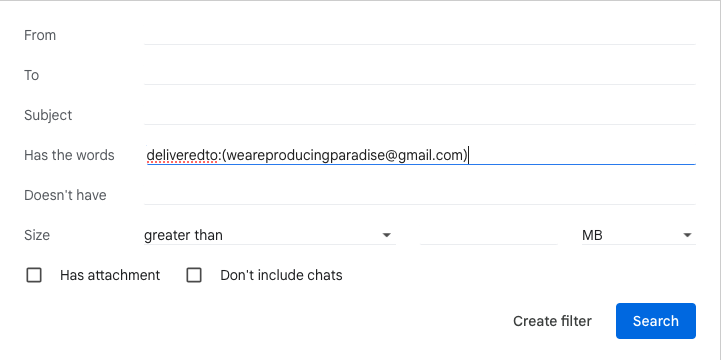
9. Choose what happens to matching messages: forward it to the first forwarding address.
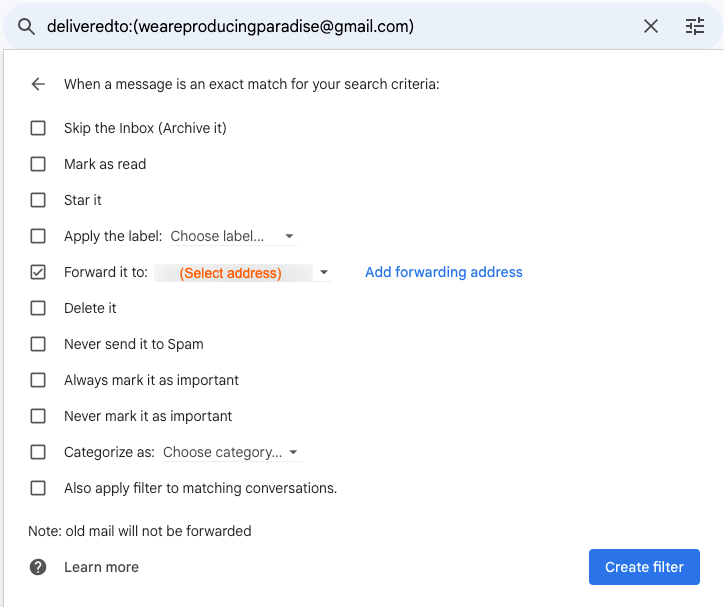
10. Repeat step 9 for each forwarding address until your filter list looks something like this:
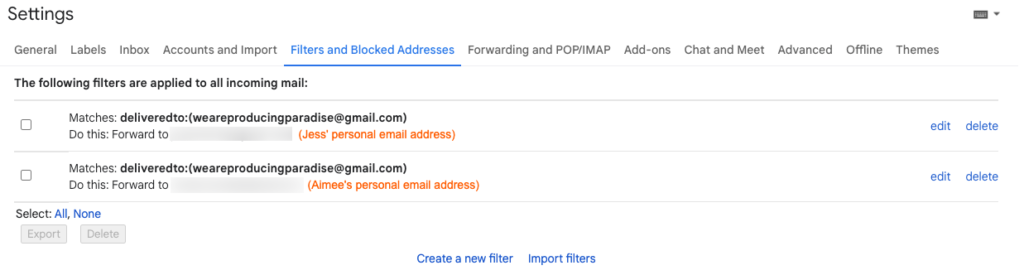
Send an email to the original address to check it's doing what it's supposed to.
The forwarded emails act as notifications. Keep them as a reminder of an action required (in your @Action folder, if you’re that way inclined) or delete them immediately, since they still exist in the main email account.
Psst... this post has been updated! The original instructions used the basic 'to:(youremail@gmail.com)' filter but the newer method uses the field 'Has the words' and 'deliveredto:(youremail@gmail.com)' so that it will forward emails that have been received via BCC or CC as well.
Hold on, what about replying?
When one of these forwarded emails lands in our personal inbox and we need to reply, we either:
a) Reply from our own email address and BCC weareproducingparadise@gmail.com so everyone can see it's been dealt with; or
b) Log into the dedicated Google account for weareproducingparadise@gmail.com and reply from there (if we want to keep our personal email address private).
It depends on the conversation and who we're responding to.
If you don't want to get logged out of your personal Google account, most browsers let you open a Private or Incognito window (in Chrome: File > New Incognito Window) to log in elsewhere without disturbing your session.
There's a tidier option, too. Set up the forwarding email as one you can 'Send mail as' in the Gmail settings of your personal account (under Accounts and Import, and choose 'Reply from the same address the message was sent to'). That avoids logging in and out of the shared account and keeps your personal email address private once forwarding is set up. Nifty.
FAQ
Will emails still arrive in the main shared inbox?
Yes. The filters forward copies, so the original stays in the shared account. That's why deleting the forwarded notifications in your personal inbox doesn't cost you anything.
Why disable native forwarding if we still want to forward?
Native forwarding only handles one destination, and leaving it on alongside the filters causes duplicate forwards. Disabling it makes the filters the only forwarding mechanism, so there's one source of truth.
Could I just use Google Groups instead?
Yes, and for simple fan-out it's faster. Create a group with everyone as members, then point Gmail's single forwarding slot at the group address. The trade-off is flexibility. Filters give you per-recipient control (you can forward different categories to different people, or trial a recipient without re-verifying). Groups gives you speed but locks everyone into the same forwarding rule. Pick on use case.
What about Gmail's native shared inbox?
Google has been rolling out a native shared inbox feature for Workspace through 2025 and 2026, with collision alerts and assignment built in. If you're on Workspace, check whether it's available in your admin console before setting up filters. On free Gmail, where this article lives, the workaround is still the answer.
Does Gemini work on emails forwarded this way?
Yes. The forwarded emails arrive in your personal inbox like any other mail, so Gemini summarisation and reply suggestions work as normal. Worth knowing: Gemini doesn't currently work inside delegated or shared inboxes themselves, so this workaround actually plays better with AI features than delegation does.
Pro-tips on email management
If these instructions were helpful, you might also be interested in:
my email management principles (the basics);
how I use Trello to manage my to-do list ...instead of using my emails as a task list 😉
...and check out the Producing Paradise YouTube channel for many other quick pro-tips!
Email hacks aren't enough. Build systems that make your whole business flow.
Managing your inbox is a great start, but real productivity comes from having simple, consistent systems that support everything you do.
The Organised Creative Notion Template
A ready-to-use Notion workspace with built-in workflows, task prioritisation, and project tracking. Designed for freelancers who want structure without the setup time.
EXPLORE THE TEMPLATE →
The Most Organised Person I Know
A practical guide showing how to design simple, connected systems that reduce mental load and help your whole business run more smoothly. From email to client work to long-term planning.
GET THE EBOOK →
When your systems are working, you don't need to overthink every task. You get on with it.