Notion workspace structure: a setup that works when work gets busy

A well-structured Notion workspace will make it effortlessly clear what you should work on today. Steal my setup, designed for freelancers and small creative businesses.
Updated August 2026.
Summary: Keep your workspace shallow and your databases shared. Use filtered views instead of nested pages, so your daily dashboard always shows what's due, what's stuck, and what needs doing today. A four page structure of business info, client work, operations and marketing is the minimum that holds up under real work.
Your sidebar is for navigation, not a filing system
A Notion workspace structure is the way your pages, databases, and views are organised to support your work.
Without intentional structure, your tasks are likely spread across different places. A quick question from a colleague in Slack. A client request forwarded to you via email. A deadline that lives in your head. A checklist buried in a project page you haven't thought to open this week. The sidebar looks fine, but the work is scattered.
If your workspace doesn't help you find information and decide what to do next, it stops being used, which in turn means it stops serving its purpose.
Build your dashboard first
Build a single page that answers three questions:
What needs my attention today?
What's due soon?
What's stuck?
You can spend weeks honing subpages and database structures when this home page is your most impactful place to start.
Before: open Notion (and four other applications), scan various pages, mentally reconstruct your day.
After: open dashboard, see today's tasks already filtered and waiting.
The foundation of good workspace navigation
Your sidebar should reflect the main parts of your business, not every category of work you've ever done.
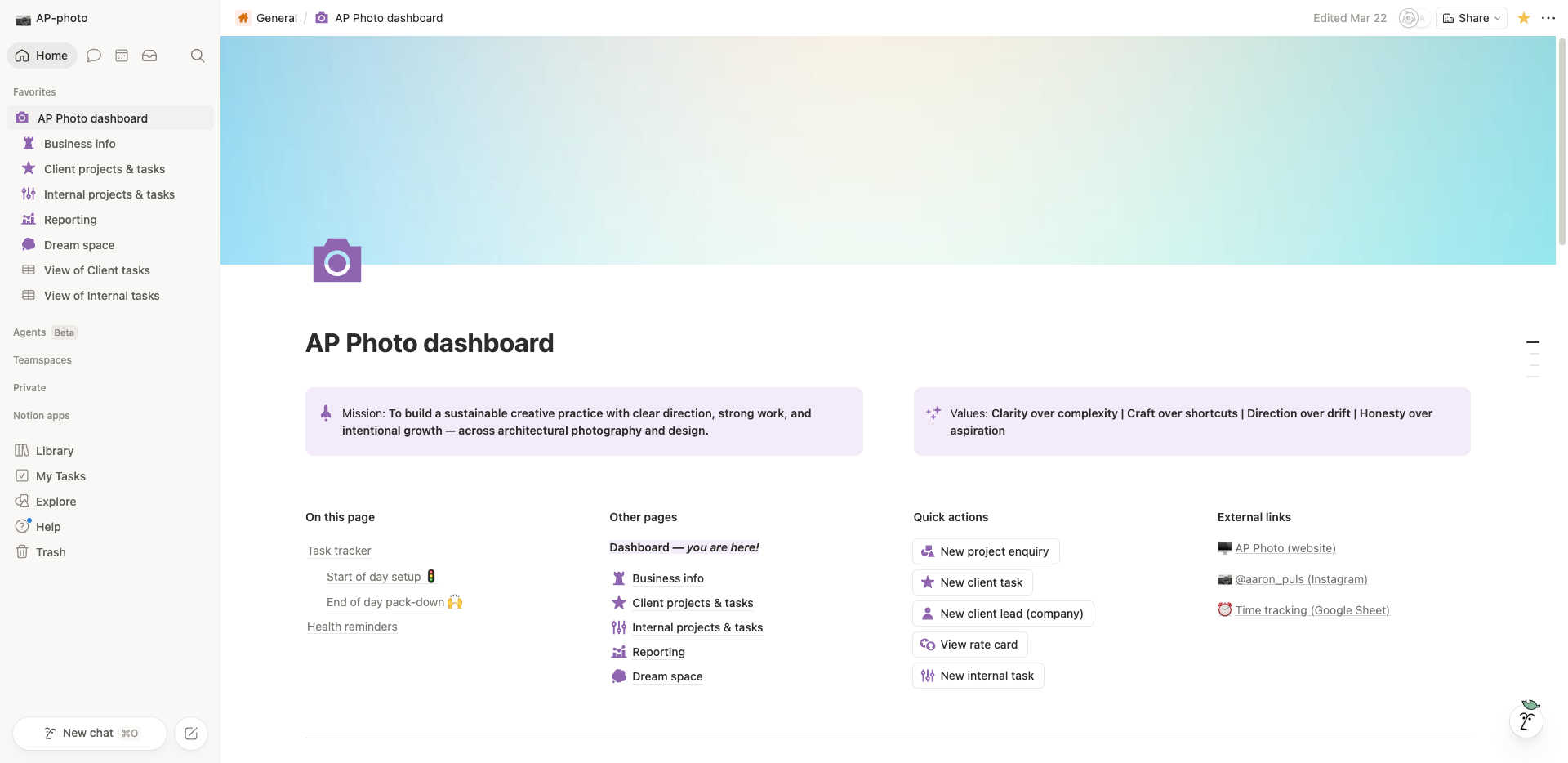
A fit for purpose Organised Creative Operating System dashboard in Notion
For most freelance creatives, this covers it:
Business info — handbook, mission, rates, services, key documents
Client work — leads, projects, active tasks, meeting notes
Operations — admin, finance, recurring checklists
Marketing — business development, planning and publishing
A note on Operations vs Marketing: for a solo business, these often overlap. If you're not managing a team, one area for "everything that runs the business" is cleaner than two. Split them when there's a reason, not just because it feels more organised.
Start with three or four areas, then only add more when there's real pressure. Every time you create a new section to house one ambiguous item, you've made the sidebar harder to read for every future visit.
Everything should be reachable within two clicks.
Folders force you to remember where something lives. Databases remove that decision.
A folder is a page full of other pages. It can't be filtered or sorted. Once you have more than a handful of items in it, you're scanning instead of searching.
Here's what the same task looks like in each approach:
Database approach
Task lives in one tasks database
It appears on your dashboard, in the project, and in your weekly review
Update it once, every view reflects the change
Finding it requires a filter
Folder approach
Task lives in one project page
To find it, you navigate to the project
Update it in one place only
Finding it requires remembering where it is
A tasks database with four properties is enough to run your work:
"Send invoice — Project: Smith website — Due: Friday — Status: In progress"
That single record surfaces wherever it's relevant. You don't recreate it, you don't copy it, you build a view that shows it in the right context.
What a working Notion setup includes:
One tasks database (Name, Status, Due date, Project)
One projects database (linked to tasks)
A daily dashboard pulling filtered views from both
A home page per area that brings views to you, not the other way around
A rule for what lives in Notion versus external tools
New sections should only be added when they solve a real problem. For example, when projects regularly involve different people and each suddenly warrants its own database.
Home pages bring the work to you
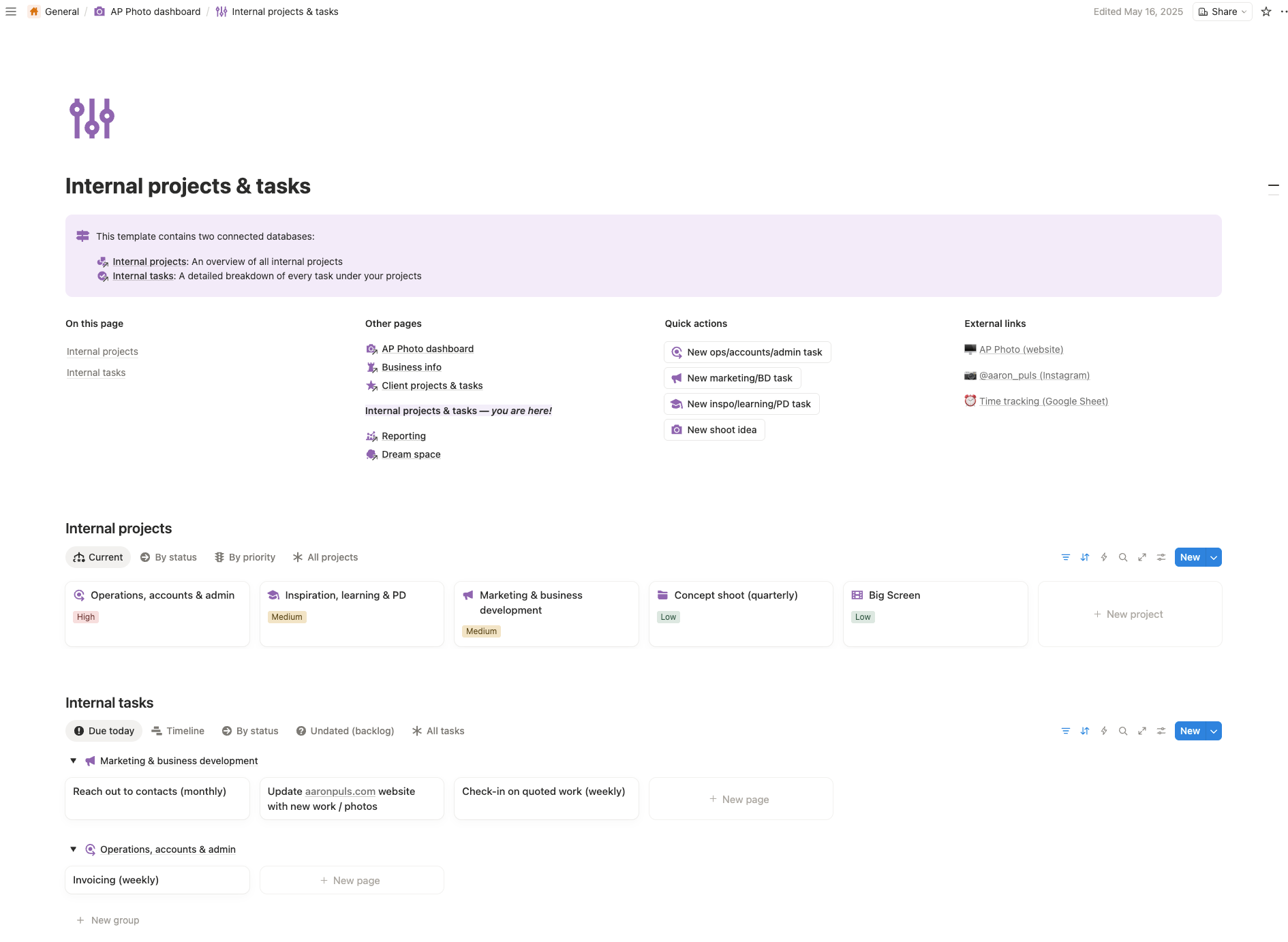
The internal tasks home page within the Organised Creative Operating System
Each area of your workspace should have a home page that does three things: explains what the area is for in a line or two, links to the main templates and documents used there, and shows the database views relevant to that area.
The pattern that holds is:
Top-level area → Home page → Filtered database views + key links
Your client work home page should show active projects, tasks due this week, and leads in the pipeline. You don't navigate to those things — they're already there, filtered to what matters now.
Inconsistent naming breaks systems
A few conventions followed without thinking are worth more than a clever hierarchy:
Use the same property names across every database (Status, Owner, Due Date — not a mix of "assigned to" and "who's on it")
Name home pages the same way: "Client work — home", "Operations — home"
Use database templates for anything repeatable: project briefs, client onboarding, weekly reviews
If naming is inconsistent, you risk confusing people because the system doesn't feel trustworthy. Decide on conventions early and document them somewhere visible — a line in your Business info page is enough.
Decide where things live
Pick a rule and put it somewhere visible:
Notion is the source of truth for planning, decisions, and process
Drive stores large files — design work, video, assets — and Notion links to them
Without this, you'll spend real time wondering whether the brief lives in Notion or a Drive folder, whether the approved rates are in your inbox or your Business info page. That low-grade friction is what makes people stop trusting the system.
Give brainstorming its own space
One reason workspaces get cluttered is that there's nowhere for things that aren't ready yet. A future service offering, a process you want to revisit, a tool you want to try. Without a designated capture area, these either get lost or land in your active task list and create noise.
A simple page — separate from the four main areas — keeps future thinking visible without letting it distract from current work. You're not acting on it yet, but you're not losing it either.
Overbuilding is why most systems get abandoned
Don't create multiple task lists. Don't build elaborate dashboards before you understand what you need to see. Don't add automations before the manual process is working. You'll spend two hours building something, use it for three days, and then quietly revert to the notes app on your phone.
Real use shows you what's missing. Build the minimum and let the gaps reveal themselves.
AI won’t fix a broken system
AI is useful once your data is structured. Before that, it just helps you create more mess faster.
Once the structure is in place, it's useful for a few specific tasks. For example:
"Here are my open tasks for today: [paste list]. I have four hours of focus time and two meetings. Give me a realistic time-blocked plan, flag anything I should push to tomorrow, and tell me if anything looks like it needs breaking down further."
That only works if the task list is clean and current. A messy database produces a messy plan. The AI doesn't fix the underlying structure, it amplifies whatever is already there.
Regular maintenance prevents failure
The obvious problems surface fast — scattered tasks, no clear entry point, no single source of truth. Those are structural and fixable.
The failure that takes longer to notice is the absence of a closing-the-loop habit. No end-of-day check-in, no weekly review that leads to actual decisions. The system slowly fills with stale tasks, nothing gets archived, and eventually you're working around the tool instead of with it.
Three routines keep a system current:
Morning triage (5 min): review open tasks, add anything new, pick your most essential task, block time in your calendar to match.
Evening pack-down (5 min): mark what's done, update due dates, capture anything that came up.
Weekly review (20 min): clear what's overdue, set three priorities for next week, spot anything you could simplify or drop
If those three habits are in place, the system stays current. Without them, it drifts — and a drifting system gets abandoned.
One task list per context
If you have tasks in a database, tasks in a page, and tasks in your head — and you're deciding each morning where to look — the workspace is asking too many questions.
For some businesses, two task databases make sense: one for client work, one for internal work. Those are different contexts. What doesn't work is tasks scattered across pages, inboxes, and memory with no deliberate structure underneath.
If your system keeps drifting, it's not because you're inconsistent. It's because you have to keep deciding where things go.
The Organised Creative Operating System is built around this structure. Separate databases for client tasks and internal work, a projects database linking everything together, a daily dashboard as the single entry point, and built-in prompts for all three routines above. If you'd rather start from a working system than build one from scratch, it's designed for exactly this.
FAQ
What is a Notion workspace structure? It's how your pages, databases, and views are organised to support daily work. A good structure means everything is reachable within two clicks and your daily dashboard shows what needs doing without any navigation.
How many top-level pages should a Notion workspace have? Three or four to start. Each area should represent a distinct part of the business. More than six and the sidebar can get noisy.
How do I handle personal and work tasks in one Notion account? Keep them in separate workspaces. Use your personal email login for personal tasks and a work email login for work. Even if you're a freelancer, the separation is helpful. Mixing them makes it harder to switch context and easier to let personal admin bleed into work time.
What's the difference between a Notion database and a regular page? If you'll ever need to filter, sort, or report on a set of things, build it as a database. If it's reference material, a page is better suited.
Should I use Teamspaces as a freelancer? Probably not. They're useful when you need to control what different collaborators can see or edit. Add them when permissions start to matter.
What should live in Notion versus Google Drive? Notion for planning, decisions, and process. Drive for large files and assets. Notion links to Drive, it doesn't try to replace it.
Workspace structure sorted? The template does the rest
A good structure makes it clear what you should work on today. The hard part is building it.
Want a setup that's ready to go?
The Organised Creative Operating System is built around this structure. Separate databases for client and internal work, a projects database linking everything together, a daily dashboard as the single entry point, and built-in prompts for morning triage, evening pack-down, and weekly review.
EXPLORE THE TEMPLATE →
How about systems that work beyond Notion?
The Most Organised Person I Know shows you how to design simple systems that reduce mental load and help your work flow more smoothly, from daily tasks through to long-term projects, at work and at home.
GET THE EBOOK →
Because the best system is the one you actually use.