
The free Chrome browser extension that helps you take a more awesome screenshot.
Summary: This guide explains how to crop and annotate browser screenshots using Awesome Screenshot, and a few cool things it can do like capturing the whole page (including out of view area), capturing after delay, and annotations.
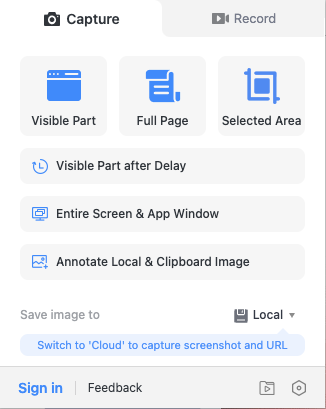
You probably know how to take a screenshot on your Mac (Command+Shift+3) or PC (Windows+Shift+S), but the free Awesome Screenshot app has a few cool tricks:
- Capture the whole page, instead of having to ‘stitch together’ multiple screenshots
- Capture after a delay, so you can capture an ‘in action’ screenshot
- Annotate the screenshot before saving, including text, shapes, highlights and blur
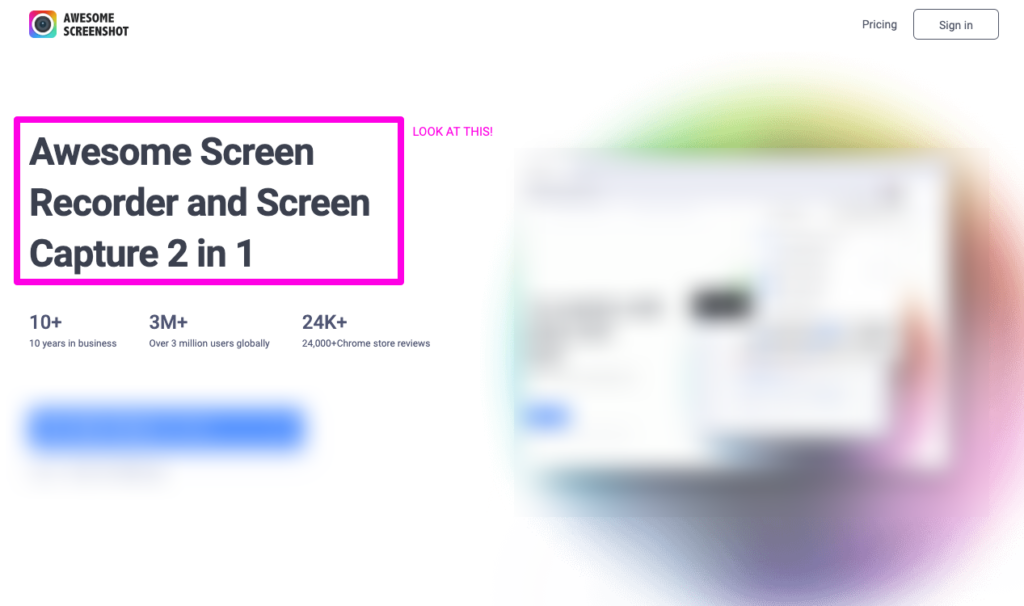
Dare I say it, it’s kindof awesome.
Here’s a quick (4min) video run-through of how to use it:
One simple tool can make a big difference. What else could feel this easy?
If annotating screenshots made your workflow smoother, imagine having that same clarity across your whole business setup.
For freelancers who love tidy tools
The Organised Creative Notion template brings your tasks, calendar, and content ideas into one streamlined space, so you spend less time switching between tabs and more time doing the work that matters.
EXPLORE THE TEMPLATE →
For anyone who wants systems that stick
The Most Organised Person I Know shows you how to design simple systems that reduce mental load and help your work flow more smoothly, from daily tasks through to long-term projects. Same clarity, bigger picture.
GET THE EBOOK →
Small changes add up. Let’s make sure your tools are working for you.