
Apple Shortcuts can turn any URL into an app on your iPhone Home screens.
Summary: Apple Shortcuts can turn any URL into an app on your iPhone Home screens, with a pretty icon to boot. I use it to go straight to my Notion pages for blog tasks, post ideas, or the social media post tracking board 💅
Why bother with shortcuts?
I was constantly opening Notion, waiting for it to load, then navigating through folders to find the page I needed. It was taking four or five taps every single time I wanted to add a blog idea or check what needed publishing.
Now? One tap from my home screen and I’m exactly where I need to be. No waiting, no navigating, no friction.
How to create a URL shortcut
It’s simpler than you’d think. Here’s the process:
Step 1: Get the URL you want to shortcut
Open the page in your browser (whether it’s a Notion page, Google Doc, Trello board, or any web page you visit regularly). Copy the full URL from the address bar.
Step 2: Open the Shortcuts app
This comes pre-installed on iPhones. If you’ve deleted it, you can redownload it from the App Store.
Step 3: Create a new shortcut
Tap the + button in the top right corner to create a new shortcut.
Step 4: Add the “Open URLs” action
Search for “Open URLs” in the actions library and add it to your shortcut. Paste your URL into the URL field.
Step 5: Name it and choose an icon
Tap the dropdown arrow next to “New Shortcut” at the top. Give it a clear name (like “Blog Ideas” or “Post Tracker”). Tap “Choose Icon” to pick a colour and icon that makes sense to you.
Step 6: Add to Home Screen
Tap the three dots menu, then tap “Add to Home Screen”. You can adjust the name and icon here too if you want. Tap “Add” and it’ll appear on your home screen like any other app.
The shortcuts I use
Since discovering the Shortcuts app, I’ve created quick links to:
- Our social post tracking page (for TikToks and YouTube videos)
- Our blog post tracking page (what’s been published on this site)
- Add a new blog post idea
- Go to the Producing Paradise task board (for all the non-content tasks)
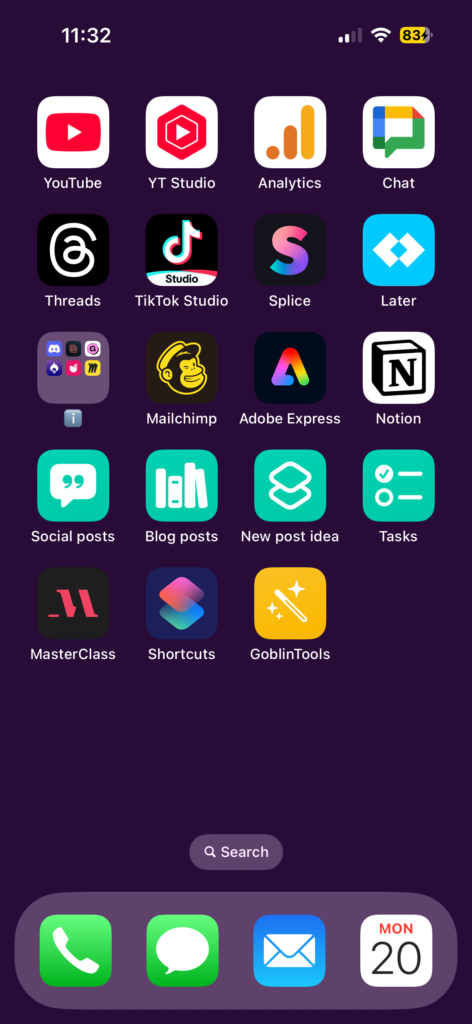
I keep all the Producing Paradise shortcuts together in one of my iPhone Home screens, so I can see them all at once when I’m in this zone 🧝♀️
Tips for making the most of shortcuts
Group related shortcuts together: I have a dedicated home screen for Producing Paradise work, which includes both the actual Notion app and all my shortcuts. This creates a clear mental boundary between work modes.
Use consistent naming: I prefix all my blog-related shortcuts with “PP” so they’re easy to spot and sort alphabetically if needed.
Pick distinctive icons: Choose colours and symbols that make sense at a glance. My blog ideas shortcut is a lightbulb, my task board is a clipboard.
Start with your most-used pages: Don’t go wild creating shortcuts for everything. Start with the three or four pages you access multiple times a day and see if it actually saves you time.
Learn from the experts
If you want to dive deeper into iPhone productivity, Tiffany Griffin (TechTiff) is brilliant at breaking down Apple Shortcuts and iPhone tips in a way that makes sense. One tip I picked up from her: use Focus Modes in combination with your shortcuts. You can set certain home screens to appear only during specific Focus Modes (like Work or Personal), which means your productivity shortcuts only show up when you’re in work mode. Keeps things tidy and helps with context switching.
Other useful shortcut ideas
Beyond blog management, you could create shortcuts to:
- Client portals or project management boards
- Your calendar’s week view
- Frequently used Google Sheets or Docs
- Your email compose screen
- Specific Slack channels
- Your most-visited research resources
- Invoice templates or tracking sheets
The key is finding the pages you visit repeatedly throughout your day and removing the friction of getting there.
Worth the five minutes?
Absolutely. Setting up each shortcut takes about a minute once you know the process, and you’ll save that time back within the first week just from reduced clicking around.
Plus there’s something satisfying about having a tidy, purposeful home screen that gets you exactly where you need to be.
Streamlined your workflow with Apple Shortcuts? Now take your productivity to the next level
Turning URLs into apps on your iPhone Home screen can save time and boost efficiency, but it’s just one part of creating a seamless workflow.
Want a plug-and-play system to support your productivity goals?
Our Notion template gives freelancers a complete setup to manage projects, track tasks, and stay organised, helping you build on the momentum you’ve gained from optimising your Apple Shortcuts.
EXPLORE THE TEMPLATE →
Ready for the complete framework?
The Most Organised Person I Know shows you how to design simple systems that reduce mental load and help your work flow more smoothly, from daily tasks through to long-term projects.
GET THE EBOOK →
Build a workflow that lets you focus on what matters most.